Digging in Virtualization
Ever wanted to run a computer inside your computer that you can't actually touch? Discover the beauty of virtualization and learn how non-physical machines work.
A Computer That You Can’t Physically Touch
Does that title confuse you? Oh wait, you are thinking “Ah, he means someone else’s computer in a building I don’t have access to”. Nope, I mean a computer that you can’t actually physically touch even when you are right next to it. Now does that confuse you? Good! Now, I have a reason to explain to you the beauty of virtualization.
Virtualization refers to creating and using non-physical machines. This lets you run a computer… inside your computer, and there’s a fun technical detail: The computer that is being run within your computer doesn’t know it’s being run inside of an actual computer. Instead it thinks it is a real computer itself.
This may seem like it doesn’t make sense. I wouldn’t blame you. This post will help make more sense of what I said.
Host vs Guest
To start understanding virtualization, you should know two terms: Host and Guest. This will even help avoid the confusion caused by saying computer many times like I did previously (Running a computer within a computer).
Look at your computer - whether it be a laptop or a desktop. You are looking at the host. The host is the physical machine with the actual physical hardware like the processor, memory (RAM), and storage disks. It’s the one you can physically touch.
A guest is the computer running WITHIN the host (the physical computer). This is made possible by having the host share some of its processor, RAM, and storage space - the hardware that is needed to actually run a computer and its tasks.
Note
Another term for the guest is a virtual machine (VM for short). This is a more common term used when IT professionals are communicating with each other.
Hypervisors
How are these guests run? This is where a hypervisor comes into play. A hypervisor is software that is installed onto the host and is then used to create and manage guests. You are also able to view the screen of the guest through the hypervisor itself (as if you were looking at your computer monitor) as well as interact with it using external gear like a keyboard and mouse.
There are two types of hypervisors: Bare Metal and Hosted.
Type 1: Bare Metal
Bare metal hypervisors run directly on the host’s hardware and act as the operating system of the host. Some examples of these are:
- VMware vSphere/ESXi
- Proxmox (What I use for my virtualization)
- KVM (Linux)
- Hyper-V (Built into Windows starting from Windows 8 on the Pro versions and up)
Note
The line between the two types can blur. Proxmox is built on Debian Linux and uses KVM, and Hyper-V runs underneath Windows, turning Windows itself into a special guest. Both are still generally considered bare metal.
Type 2: Hosted
Hosted hypervisors are installed on top of an existing operating system like Windows and Linux, allowing you to use virtualization on your personal computer. Options for hosted hypervisors include:
Visual Demonstration
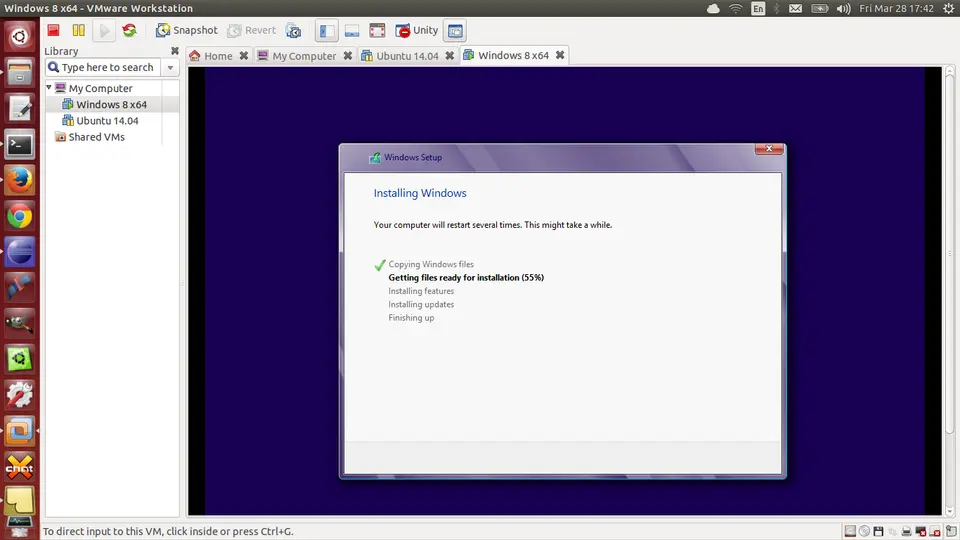
The above image is a visual demonstration of virtualization being used. Let’s break down the image. First, the application dock on the left side of the image - this is a Linux machine which is the host - the actual computer. On there, they have a hypervisor open (in this case, VMware Workstation). Within that hypervisor, they have a guest loaded up with Windows 8 on it.
It Doesn’t Know It’s Not Real
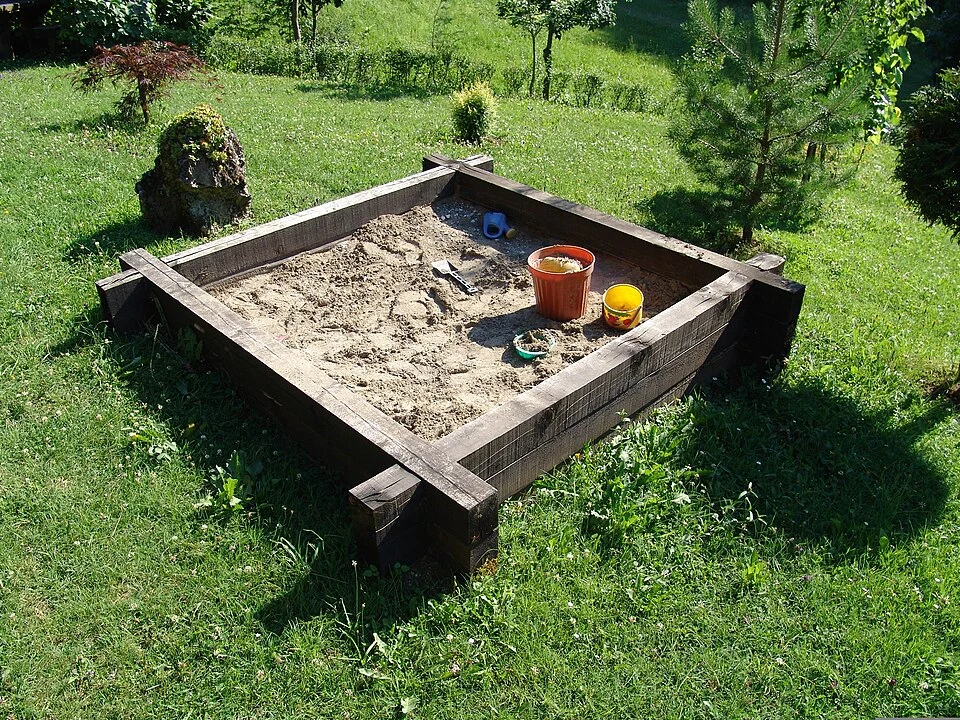
Previously, I mentioned that guests don’t know that they aren’t real computers. They actually think they are real. The hypervisor keeps each guest walled off from the host and from other guests: the host can freely interact with the guest, while the guest has very little ability to interact with the host. This is called isolation. You know the saying “Whatever happens in Vegas, stays in Vegas”? That saying is pretty true for virtualization: “Whatever happens on the guest, stays in the guest”. By design, what happens on the guest machine is not supposed to leave and go onto another guest on the host or onto the host itself (though there are rare exceptions, which you’ll see in the warning later on). It’s like a sandbox in a yard. Your kid has a dedicated space within your yard to play with their sand and anything they do in that sandbox stays in that sandbox without affecting your garden.
Why Use Virtualization
You may be wondering why you would use this if you are already on a computer. Why would I want to create a guest to do work when I can already use my host for my work? You’re right, for everyday computer usage like internet browsing, video games, emails, etc., there is no reason to use a guest. So, why are they used at all?
Servers
Using virtualization is very common in servers. The ability to run multiple guests inside of a single physical host means you don’t need as many physical computers, saving you money and physical space in your building.
Servers also gain the benefit of redundancy from virtualization. Redundancy is created by clusters. A cluster is created by connecting multiple hosts on the same network as each other so they can interact with one another. The most common interaction from a cluster is live migration. Live migration refers to moving one or more guests from their current host to a new host over the network with little to no downtime to the guest. This is useful in scenarios where one of the hosts has degraded performance and needs to be powered off for maintenance:
- All guests on the host to be worked on are migrated to other hosts.
- The host is powered off, worked on, and turned back on.
- The guests that were moved are migrated back.
But, what if one of the hosts actually dies, such as when it loses power or its processor fails? Won’t the guests all go down because they couldn’t be moved over before it died? Correct. If that host dies, all of its guests will go down with it. To solve this problem, companies will use High Availability (HA) tools. HA keeps services running with minimal downtime even if hardware fails.
Here’s how HA typically works in a company’s setup. Instead of using disks inside their host, the guests store their data on a separate, dedicated storage system that every host in the cluster can reach. This storage system usually has redundancy of its own to avoid any loss of data. When a guest reads or writes data, the hypervisor acts as the middleman by forwarding that data to and from the dedicated storage system. Now, if a host dies, the cluster will detect the dead host and automatically restart its guests on surviving hosts, which can reach the same storage system. This causes a brief reboot because the guest’s RAM (where data actively in use is held) lived on the dead host. The guest still uses the processor and RAM of whichever host it is running on.
One last benefit to know servers gain from virtualization is centralized maintenance. Instead of physically going to each computer, an IT professional can manage and conduct maintenance on the guests through just their own computer or a dedicated computer for managing clusters.
So, for server hosting, virtualization gives the benefits of cost-saving, physical space saving, redundancy, and centralized management.
Cybersecurity
Cybersecurity professionals also use virtualization commonly. The main reasons cybersecurity professionals use virtualization are for the isolation it provides and what’s called snapshots. In virtualization, snapshots allow you to save the current state of the guest, allowing you to revert back to that state if you need to. Let’s say you make a snapshot of the guest and then do some work on the guest that causes it to break. You can simply restore from the last snapshot you made, which brings the guest to how it was before you broke it.
Warning
Snapshots are NOT backups. They are a quick, point-in-time reference on the same storage, while a backup is an independent, separate copy of your data.
Cybersecurity professionals use virtualization to create environments that act as blast containment tanks. This allows them to drop malware onto the guest so they can monitor how it works and investigate it in an environment isolated from their host. Then, when they are done, they can restore to the previous snapshot to completely remove the malware and anything it did, and reuse the guest to investigate something else.
Virtualization also allows cybersecurity professionals to create hacking target practice environments where they create guests to hack into or find security vulnerabilities in without having to spend money buying a whole computer for it.
Warning
While guests provide isolation to allow for observing and investigating malware, it isn’t 100% safe. Some malware is sophisticated enough to escape the guest and get onto the host. This is called VM Escape. So, when cybersecurity professionals conduct research like on malware where this could be problematic, they generally will have a physically separate machine dedicated for dropping malware onto.
Homelabs/Tinkering
People who have their own computer homelabs like myself use virtualization a lot as well for the two uses above, but really just to create multiple machines to play around in without buying a new computer for each thing and without risking breaking our host. Unlike companies, we homelabbers don’t have as much money, so virtualization is a beautiful technology to us.
Real Example
To end this explanation of virtualization, I will provide an example of virtualization being used - my own virtualization setup.
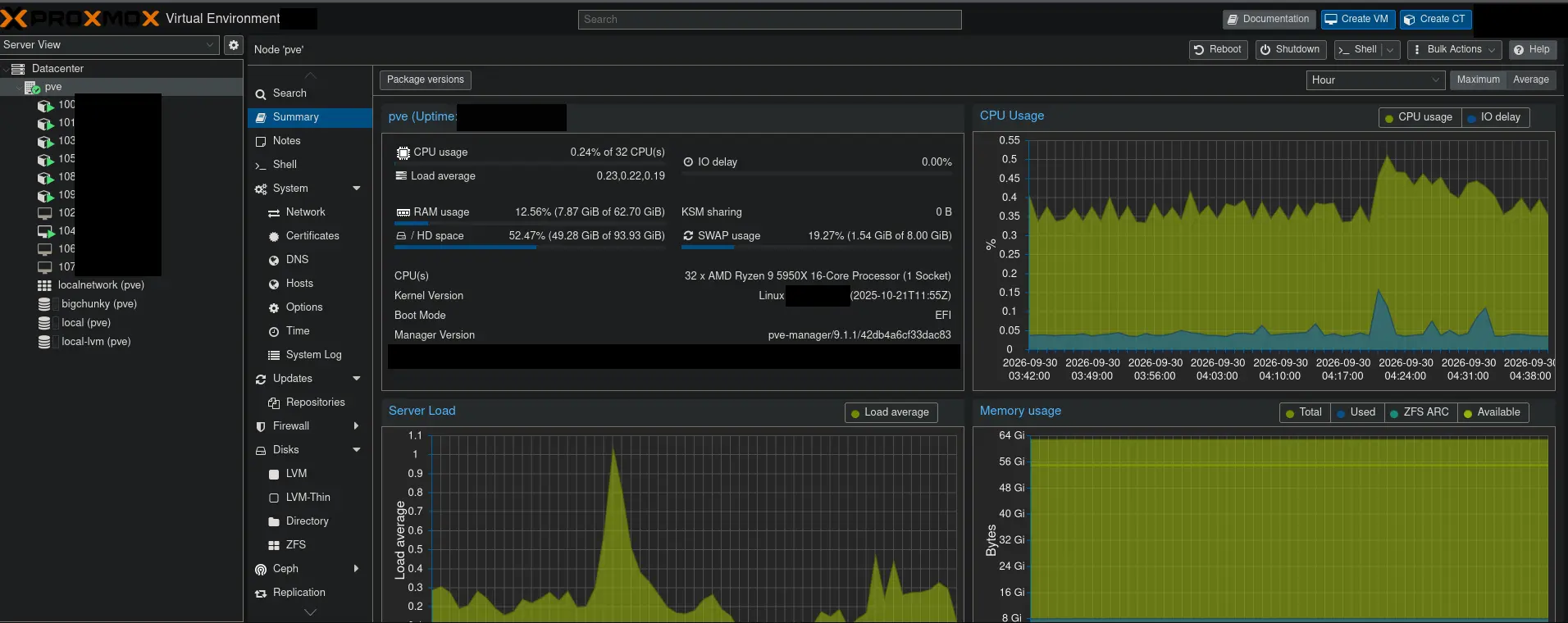
This is the dashboard view of my Proxmox hypervisor. This host is a separate host from my actual workstation here in my office that I am typing this on. I am accessing it via my browser.
- In the left-most pane, I have several guests that are set up, with a few turned off.
- To the right of that, I have the options available to manage my guests and the hypervisor.
- In the main window, I have a display with the details (like my hardware) for my host, as well as three graphs showing the usage of my processor, memory, and the overall load on my host.
- In the top-right, I have the options to create and manage my guests.
- Although it’s cropped out of the image, the bottom of all of this shows a history of tasks I did on my host, such as what guests I turned on, turned off, etc.
Virtualization Is Great
Virtualization is, at the end of the day, a very powerful tool that allows IT professionals to have a more cost-effective, efficient way to manage systems within their IT infrastructure. And this efficiency brings a better experience for end users, such as faster incident resolution times, by reducing how often IT professionals have to physically go to systems that are having issues and reducing the average downtime that may happen. Virtualization is something that should be appreciated by everyone, and it all comes from one simple idea: a computer that you can’t physically touch.